
Apple Wallet: what is it and how do you use it?
Apple Wallet is the digital wallet on your iPhone. It holds cards such as your payment card, boarding pass, or loyalty card when the provider supports Wallet. Open the app, choose your card, and use it to pay or show it for scanning.
What can you do with Apple Wallet?
Wallet keeps your cards together. At the entrance to a concert, you can open your ticket without searching through your email. Open the app and choose the card you need.
You can keep several types of cards and passes in Wallet:
- Payment cards: to pay with your iPhone in a store.
- Boarding passes: to show your boarding pass at the gate.
- Event tickets: for a concert or a trip to the movies.
- Loyalty cards: to show your membership card at checkout.
- Digital business cards: to share your contact details through a QR code.
Your bank, store, or other provider determines whether you can add its card to Wallet.
Apple Wallet and Apple Pay: the difference
Wallet holds your cards. Apple Pay lets you pay. Add a supported payment card to Wallet to make purchases. You don't need to set up Apple Pay to use a ticket or business card.
How do you open Apple Wallet on iPhone?
- Unlock your iPhone and tap the Wallet app. Its icon looks like a black cardholder with colored cards.
- If it isn't on your Home Screen, swipe down from the middle and search for Wallet.
- In Wallet, tap the card you want to use.
You can also open Wallet with a button. On an iPhone with Face ID, double-click the side button. On an iPhone with Touch ID, double-click the Home button. Confirm with your face, fingerprint, or passcode if asked.
If this shortcut doesn't work, see the side button setting below.
Add a card to Apple Wallet
For a payment card, start in Wallet. For a ticket or loyalty card, start with the provider of that card.
Add a payment card
Your bank and card need to support Apple Pay. Then follow these steps:
- Open Wallet and tap the plus button in the top-right corner.
- Choose the debit or credit card option and follow the instructions on screen.
- Complete verification with your bank if requested.
Add a ticket or loyalty card
- Open the app, website, or confirmation email containing your card.
- Tap Add to Apple Wallet.
- Check the card and confirm that you want to add it.
You'll then find the card in Wallet. Start with the provider's Wallet button, even if you already received the card by email.
Use your cards in Wallet
Pay with your iPhone
At a payment terminal that accepts Apple Pay, pay with your iPhone in three steps:
- Open Wallet and select your payment card.
- Follow the prompt on screen to confirm with Face ID, Touch ID, or your passcode.
- Hold the top of your iPhone near the payment terminal until you see Done and a checkmark.
Show a ticket or loyalty card
Open the card in Wallet and show its QR code or barcode to the scanner. Keep your screen on and the entire code visible. If your payment card appears first, tap it to see your other cards.
Some passes work by holding your phone near a reader. Follow the instructions for that pass. For a card with a QR code, use the code on your screen.
Share your business card with Tapify
Your Tapify digital business card can go in Wallet too. When you meet someone, open your card and let them scan its QR code. You won't need to open the Tapify app first.
Add your card once from the Tapify app:
- Open your card in Tapify and tap its QR code to open Share.
- Choose Add to Apple Wallet.
- Check the preview and tap the Add to Apple Wallet button.
- Confirm the addition in the Wallet screen.
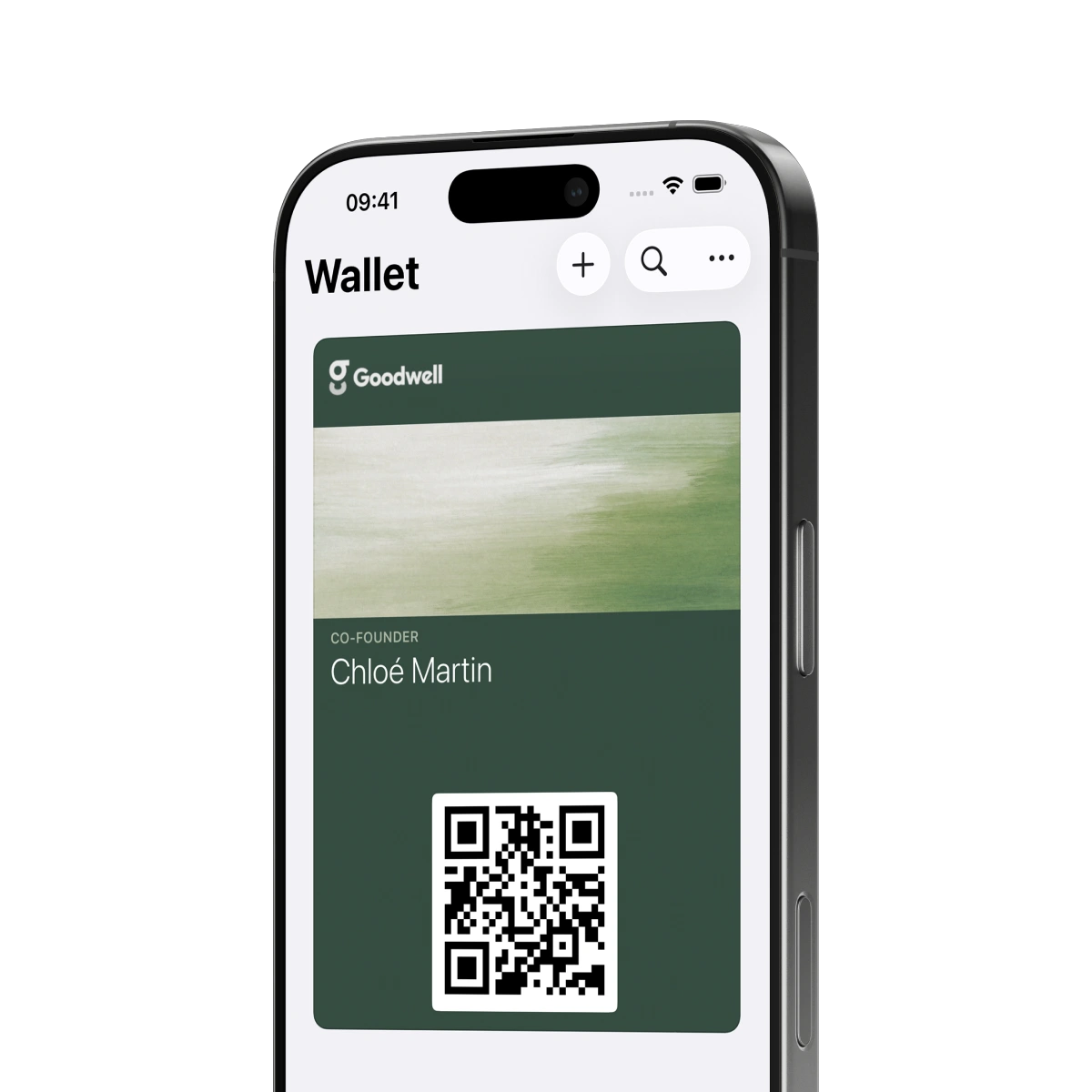
The other person scans your QR code with their camera and opens your profile in their browser. They don't need the Tapify app or an account to view it. From your profile, they can exchange and save contact details. Our guide to scanning a QR code explains those steps.
Apple Wallet isn't working: what can you do?
The side button doesn't open Wallet
Open Wallet through the app first. Then check Settings → Wallet & Apple Pay → Apple Pay Defaults. Enable Double-Click Side Button, or the Home button option. On some iOS versions, this button setting appears directly under Wallet & Apple Pay.
If another payment app opens, it may be set as the default. In Settings, choose Apple Wallet as your default contactless app to open Wallet with the button.
You can't find the Wallet app
Search for Wallet from your Home Screen. If the app was deleted, download the official Wallet app from Apple again from the App Store.
There's no button to add your ticket
Check the provider's app, website, or email. If none has a Wallet button, ask whether the card supports Wallet. Until then, use the ticket as the provider supplied it. You can't use the plus button to add a PDF or photo as a Wallet pass.
A card or ticket is missing
An expired ticket may be hidden. In Wallet, check More → Expired to find hidden passes and make them visible again. A new card may be missing because you haven't finished adding it. Return to the provider's Wallet button to complete the process.