
How to scan a QR code on iPhone and Android
Open your phone’s camera, keep the entire QR code in view, and tap the link that appears. You don’t need to take a photo. Many phones do this without a separate scanner app. If the code is on your own screen, save it as an image and read it with Photos, Gallery, or Google Lens.
Scan a QR code with your iPhone
You can use your camera to read a QR code on a business card, menu, or another screen. On a recent iPhone, you don't need a separate scanner app for an ordinary QR code containing a web link.
- Open Camera and select Photo. Use the rear camera.
- Keep the whole QR code in the frame and wait for a link to appear. You don't need to take a photo.
- Check the link, then tap it to open the page.
Apple also provides a code scanner in Control Center. Open Control Center and choose Scan Code. If it's missing, add it using Add a Control. The scanner includes a flashlight for low-light situations.
Is the code already on your own phone? Go to scanning a QR code from a photo or screenshot.
Scan a QR code on Android
On many Android phones, the process is similar: open Camera, point the rear camera at the entire code, and tap the notification. If nothing appears, check your phone's scanning options. Setting names and locations can differ by model and software version.
Samsung Galaxy
Open the camera settings and check that Scan QR codes is on. Select Photo and point the camera at the code again.
You can also open Scan QR code from the Quick settings panel. This built-in scanner lets you review the detected link or action. Samsung explains both scanning methods.
Google Pixel and Google Lens
In the Pixel camera, open Settings → More settings and check Camera scan suggestions. You can also choose Scan QR code in Quick Settings. Google explains these options for Pixel.
If your Android camera doesn't recognize QR codes, try Google Lens through the Google app. Point Lens at the code and open the detected link.
Scan a QR code from a photo or screenshot
You can read a code on the same phone you receive it on. Save the image or take a screenshot with the entire code visible.
On iPhone, open the image in Photos and touch and hold the QR code. On Android, use Google Photos → More → Google Lens. Supported Samsung phones can also read it through Gallery.
Follow the full steps for scanning a QR code from a photo or screenshot, with help saving images and reading codes that aren't recognized.
QR code won't scan: what to try
First, check where the process stops. A code the camera can't recognize needs a different fix from a website that won't load.
The camera doesn't recognize the code
- Keep the whole code visible, including the empty border around it. Don't cover a corner with your finger.
- Move your phone slightly closer or farther away until the code is sharp, then hold still.
- Use enough light and avoid reflections. Clean a dirty camera lens with a soft cloth.
- When scanning another screen, enlarge the code and increase that screen's brightness if needed.
- Check your QR setting or use the built-in code scanner.
If the code is damaged, cropped, or blurry, ask for a new image or the link itself.
A link appears, but the page won't open
The scan worked. Tap the link, check your Wi-Fi or mobile data, and try loading the page again. A Page not found message can mean the destination was removed or changed. The sender needs to fix the link.
The code belongs to a particular app
A sign-in, payment, or pairing code may need the scanner inside the relevant app. Follow that service's instructions. If a sign-in code has expired, refresh it on the screen where it's displayed.
Open QR codes safely
A QR code doesn't automatically make its destination trustworthy. Check the detected link and the website address before entering information, installing anything, or paying. If you expect a business card but are asked for banking details, stop there.
For codes on signs or machines, look for a sticker placed over the original code. If you're unsure, ask the sender for the link or open the official website yourself.
Scan and save a Tapify business card
A QR code on a digital business card lets you open someone's details without typing their name or web address. With Tapify, that code can be on an NFC card or displayed on a phone in the app, Apple Wallet, or Google Wallet.
Here's the flow on a Tapify profile:
- Scan the QR code with your camera and open the link. The profile opens in your browser. You don't need the Tapify app or an account to view it.
- Choose Exchange contact details if you want to connect. Enter your details and submit the form.
- Then choose Save contact. Your phone opens or downloads a contact file, also called a vCard or VCF file.
- Open the file if needed and confirm that you want to save it to your contacts. The steps vary by phone and browser.
Scanning alone doesn't add someone to your address book. After saving, check that the contact appears in your Contacts app.
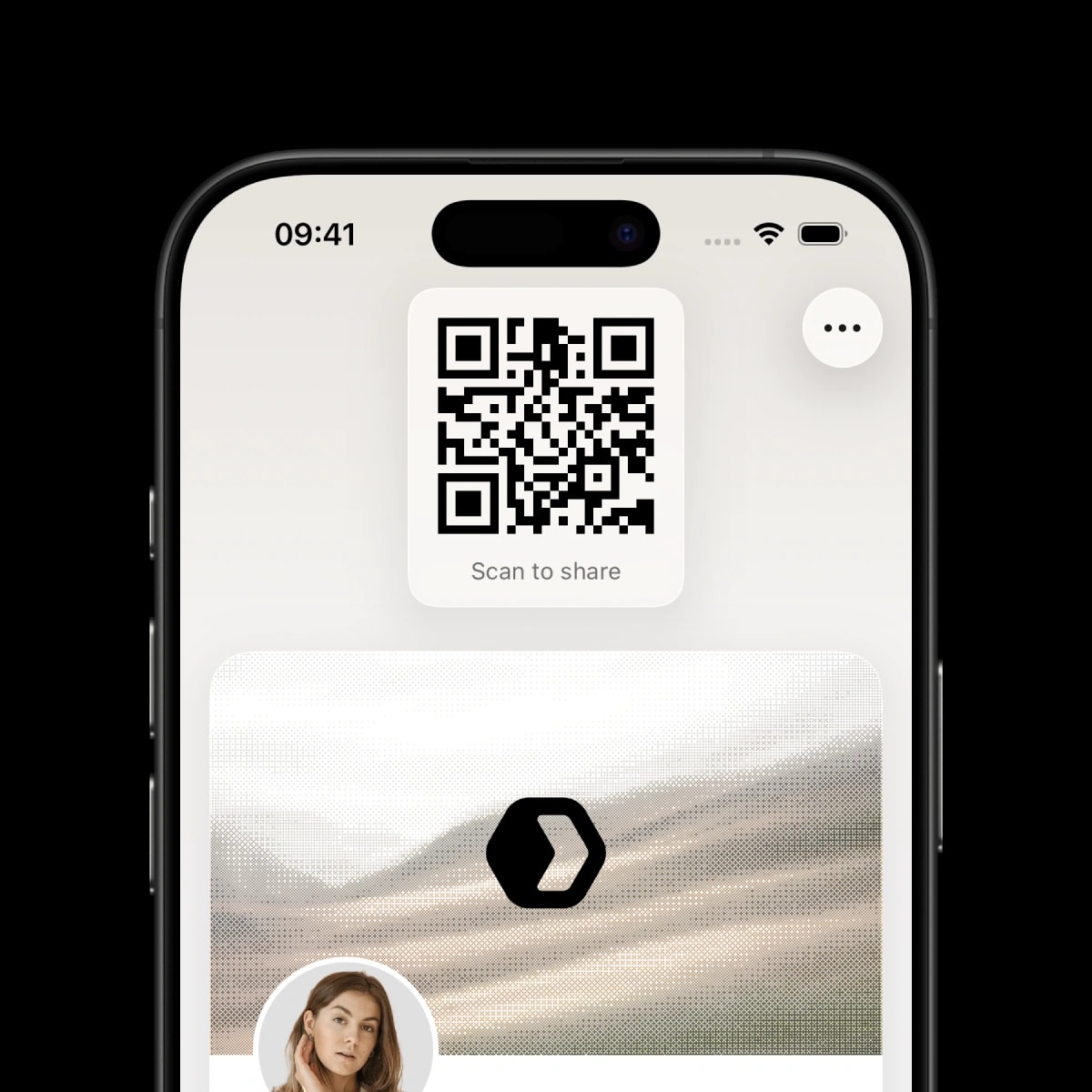
When someone scans your code, keep your screen on and the entire code visible. When sharing remotely, send your profile link so the recipient can open it directly.