
Google Wallet: what is it and how do you use it?
Google Wallet is a digital wallet for your Android phone. It holds payment cards, loyalty cards, tickets, and digital business cards. Open the app and choose your card to pay or show a code for scanning. You don't need to add a payment card to use a ticket or business card.
What can you do with Google Wallet?
Show your loyalty card at the checkout, open your boarding pass at the airport, or share your business card when you meet someone. Google Wallet keeps these cards on your Android phone so you can find them when you need them.
You can keep several types of cards and passes in Wallet:
- Payment cards: to pay with your phone.
- Loyalty cards: to collect points at a store, for example.
- Tickets and boarding passes: to enter an event or board a flight.
- Digital business cards: to share your contact details with a QR code.
The cards you can add depend on the provider and the country where you use Wallet.
Google Wallet and Google Pay: the difference
Google Wallet is the app that holds your cards. Google Pay is how you pay, in a store, on a website, or in an app. That's why you often see the Google Pay name at checkout. You don't need to link a payment card to use a loyalty card or your Tapify business card. Google explains the difference.
Download and open Google Wallet
To use the Google Wallet app, you need a Google Account and a phone running Android 9 or later. Keep the app and Google Play services updated too.
- Search your phone for Google Wallet or Wallet.
- If it isn't installed, download Google Wallet by Google LLC from the Play Store.
- Open the app, choose your Google Account, and follow the introduction on screen.
You can then add your first card. If you have an iPhone, use Apple Wallet.
Open Google Wallet with a shortcut
On supported Samsung phones, you can set up the side button:
- Go to Settings → Advanced features → Side key.
- Turn on Double press and choose Open app.
- Select Google Wallet, using the gear icon next to Open app if needed.
Then press the side button twice to open Wallet. Available options vary by model and software version. Some Android phones also have a Wallet tile in Quick Settings. Google describes these ways to open Wallet. If your phone doesn't offer them, open the app itself.
Add a card to Google Wallet
The steps depend on the type of card. Choose what you want to add below.
Add a payment card
First, check that your bank and card appear in Google's list of supported payment methods for your country.
- Open Wallet and tap Add to Wallet → Payment card.
- Choose New credit or debit card and scan your card or enter its details.
- Follow the steps and complete your bank's verification.
Some banks let you add the card through their own banking app. Use that route if your bank recommends it. Google explains both ways to add a payment card.
Add a loyalty card
- In Wallet, tap Add to Wallet → Loyalty.
- Find the store or loyalty program.
- Follow the steps to scan your existing card or link your account.
If the store isn't listed, check its own app for a Wallet button. Read more about adding loyalty cards.
Add a ticket or boarding pass
Open the provider's app, website, or confirmation email. Tap Add to Google Wallet, check your Google Account, and confirm the addition. You'll then find the pass in Wallet.
Add a card from a photo
If the provider has no Wallet button, you may be able to add an image of the card, provided it has a readable QR code or barcode:
- Tap Add to Wallet → Everything else or Photo, depending on what your app shows.
- Select a clear photo or screenshot of the card.
- Check the detected details, follow the steps, and tap Add.
Use the provider's Wallet button when available. A photo remains a copy: it won't update if a ticket's code changes. A photo of a bank card also won't enable contactless payments with that card.
How do you use Google Wallet?
Make contactless payments with your phone
To pay, you need a supported payment card, a screen lock, and a phone with NFC. This is the technology that lets your phone communicate with a nearby payment terminal. Turn NFC on and set Google Wallet as your default contactless payment app.
Once your card is ready, pay with these steps:
- Unlock your phone.
- Hold it near the payment terminal for a few seconds.
- Follow any verification prompt on screen and wait for the payment confirmation.
The Wallet app doesn't need to be open. The payment uses your default card.
Show a QR code or barcode for scanning
Open Wallet, choose your ticket or loyalty card, and show the code on your screen to the scanner. Keep the whole code visible and your screen on.
You don't need NFC to display a code. The scanner reads your screen. Our guide to NFC and QR codes explains the difference.
Your Tapify business card in Google Wallet
You can also keep your Tapify digital business card in Google Wallet. When you meet someone, open your card in Wallet and let them scan your QR code. You don't need to open the Tapify app first.
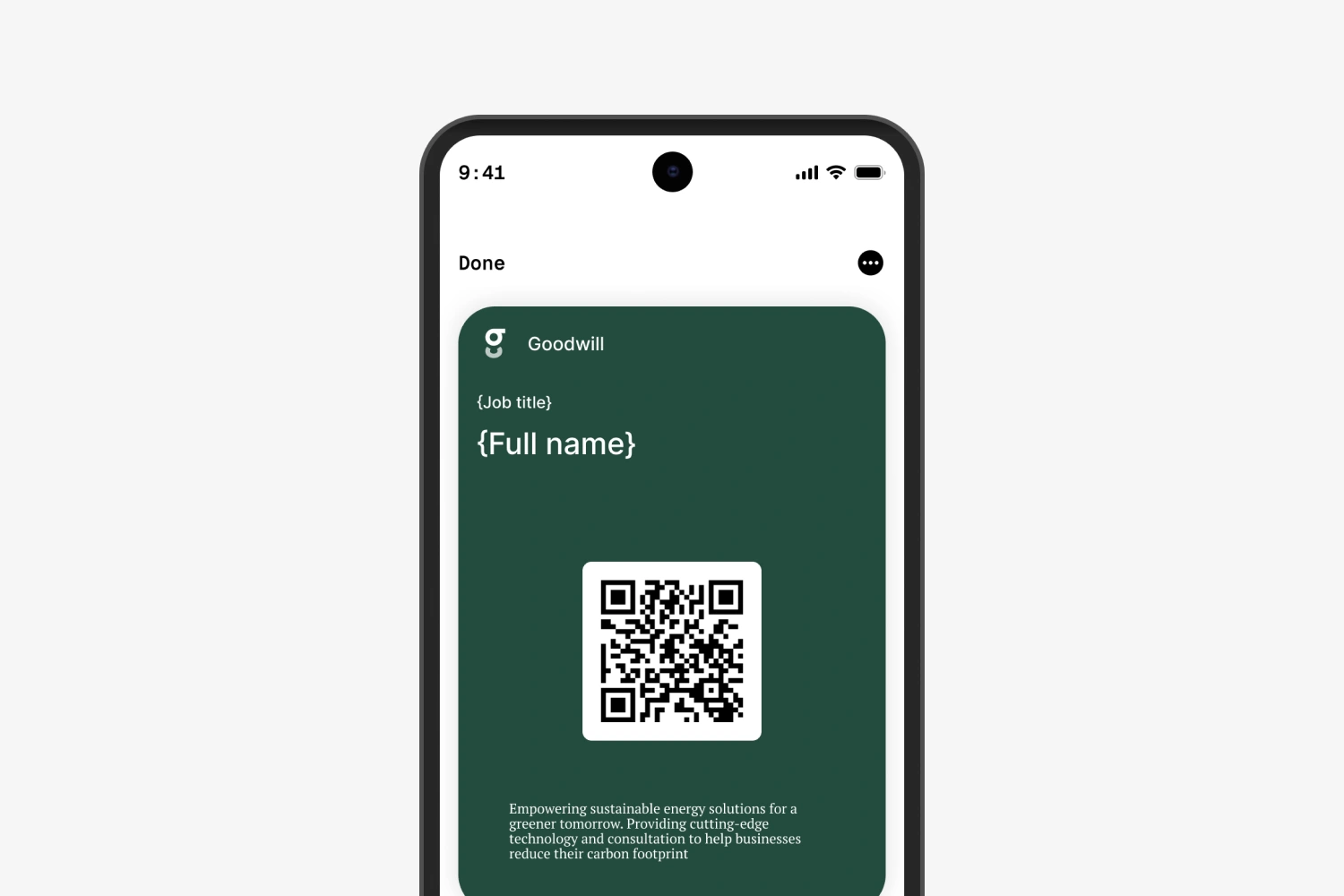
Add your card once from Tapify on your Android phone:
- Open your card in Tapify and tap its QR code to open Share.
- Choose Add to Google Wallet.
- On the Google page, check that you're using the right Google Account and confirm the addition.
- Open Google Wallet and choose your Tapify card.
The other person scans the code with their camera and opens your profile in their browser. They can save your contact details or share theirs back. They don't need the Tapify app or an account to view your profile, but they do need internet to open the page.
You share your Wallet card through the QR code on your screen. You don't need to hold your phone against theirs. See our guide to scanning a QR code for the steps.
Google Wallet isn't working: what can you do?
Contactless payments aren't working
Open your payment card in Wallet and read the message. Complete any outstanding bank verification. Then check that NFC is on and Google Wallet is the default payment app. Search your phone's settings for NFC to find those options.
If the terminal doesn't respond, move your phone slightly and hold it closer to the reader. The NFC antenna's position varies between phones. If the payment is declined, follow the message and contact your bank if needed.
Your card isn't in Wallet
Tap your profile photo at the top right and check your Google Account. If you added the card with another account, switch to that account. Check your other cards too, including under View more if shown. If the card is still missing, return to the original Wallet button and check that you completed the addition.
A QR code or barcode won't scan
Open the card fully, turn up your screen brightness, and clean your screen. Keep the entire code visible to the scanner. If a ticket still won't work, use the original ticket in the provider's app or email.