
What is NFC and how does it work?
NFC stands for Near Field Communication. It lets devices exchange information a few centimeters apart. You can use NFC to make contactless payments or open a digital business card by holding your phone near a card.
What can you use NFC for?
You may already use NFC without thinking about it. It's behind contactless payments, but it can also open information or start an action:
- Payments: hold your phone or payment card near the terminal.
- Sharing contact details: open a digital business card by holding your phone near an NFC card.
- Product information: scan a tag on a product to find its instructions.
- Shortcuts: set up a tag to turn off your smart lights at home. On a compatible iPhone, you can use the Shortcuts app. The lights and shortcut need to be set up first.
To pay with your phone, first add a supported payment card to a payment app such as Apple Wallet or Google Wallet. Turning on NFC alone isn't enough.
How does NFC work?
An NFC card contains a small chip. Hold your phone near it, and the phone reads the information on that chip, such as a link to a website. The card receives enough power from your phone to do this without a battery.
To open a web link using NFC:
- Unlock your phone and hold it near the card or tag.
- Your phone reads the link on the chip.
- Tap the notification to open the page. On some phones, the browser or app opens directly.
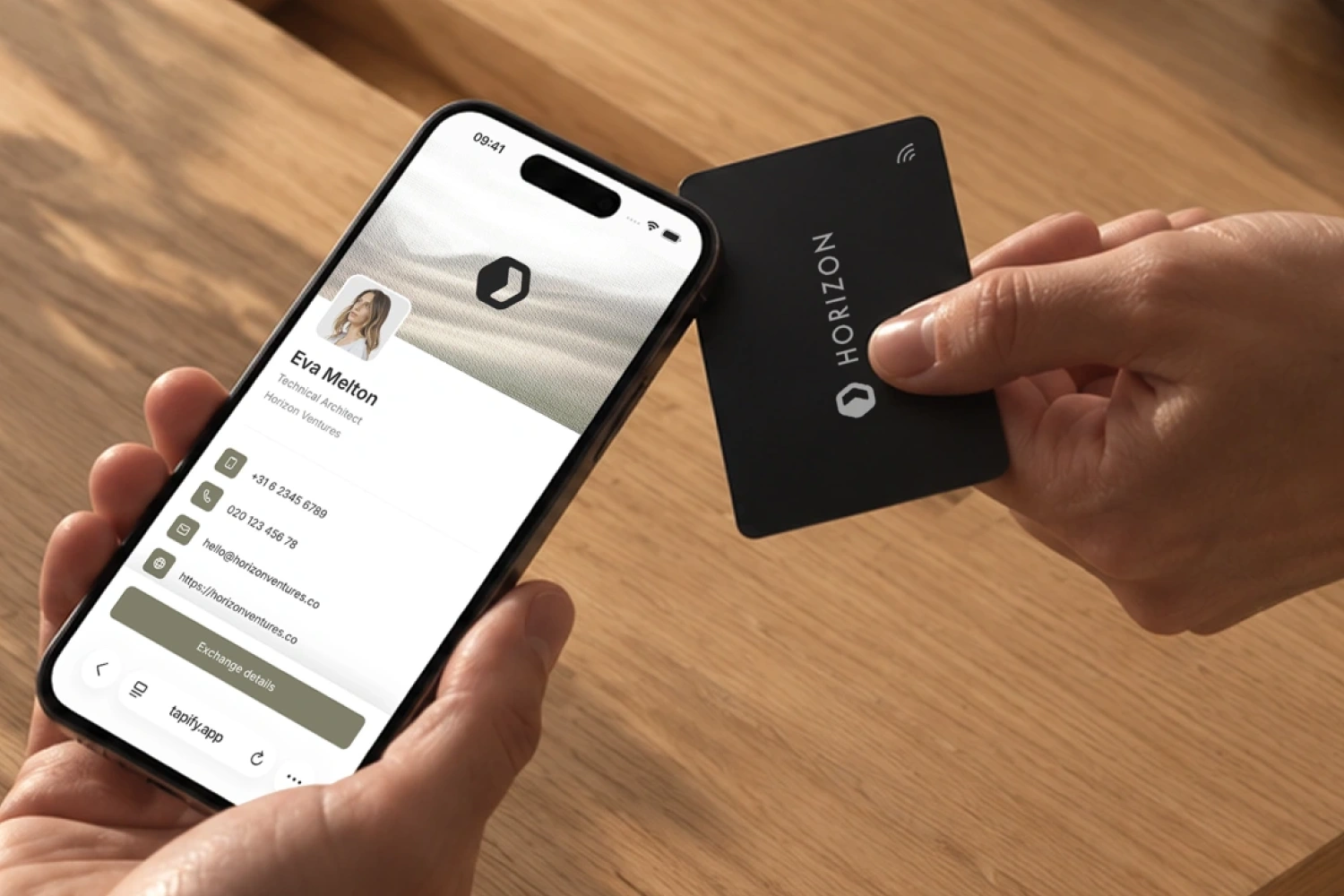
Keep your phone close to the tag. The typical range is around 2 centimeters, but it varies by phone and tag. You don't have to touch the card. Finding the right position on your phone matters more than pressing it against the card.
What are NFC tags and readers?
You'll come across three terms:
- NFC chip: the small electronic component inside the card or sticker.
- NFC tag: the chip and its antenna. Together, they can pass information to your phone.
- NFC reader: the device that reads the tag. Often, that's your smartphone.
You usually don't need a separate reader for an NFC business card. Your phone does need NFC support and the ability to read the data on the card. A protected access pass works differently from a tag containing a web link, for example.
There are also separate USB NFC readers. These are useful for reading or setting up tags through software on a computer. Check that the reader and software support your tag type and operating system.
Turning on NFC on iPhone and Android
On your iPhone
On iPhone XS, XR, and newer models, you don't need to turn NFC on to read a web link. Hold the top of your unlocked iPhone near the tag, then tap the notification. Your phone detects the tag automatically.
Older models work differently. See the instructions by model in how to turn on NFC on your iPhone.
On your Android phone
Search for NFC in Settings and turn it on. On a Google Pixel, go to Connected devices → Connection preferences → NFC. On many Samsung Galaxy phones, choose Connections → NFC and contactless payments.
Unlock your phone and hold its back near the tag. The NFC antenna's position varies by model. If you can't find the setting, check with the manufacturer whether your phone has NFC.
Do you need an app or internet?
Many recent phones don't need a separate scanning app for a tag containing a web link. Specialized tags or setting up your own tag may require one.
Reading the chip works without internet. Opening the website behind the link needs a connection. With an NFC business card, you therefore need Wi-Fi or mobile data to view the online profile.
What's the difference between NFC, QR, and Bluetooth?
NFC and QR can point to the same page. With NFC, you hold your phone near a chip. With QR, you scan a code using your camera. Bluetooth connects devices to each other.
| Technology | Example |
|---|---|
| NFC | Opening a business card by holding your phone near it. |
| QR code | Opening a link by scanning a code in print or on a screen. |
| Bluetooth | Playing music through wireless headphones. |
Some devices use NFC to help pair over Bluetooth. The music then travels over Bluetooth, so you don't have to keep the devices next to each other.
Is NFC secure?
Treat an unfamiliar NFC link with the same care as an unfamiliar QR code. Check the web address before entering personal information. The short distance between your phone and a tag doesn't automatically make a website trustworthy.
Contactless payments have additional protection. Apple Pay helps protect your payment information, for example. An ordinary NFC tag containing a link doesn't automatically have that protection. Don't put passwords or other confidential information on a tag anyone can read.
What to do if NFC isn't working
- No response? Unlock your phone and check that NFC is on. Move the phone slowly around the tag. Remove other cards or a thick or metal case and try again.
- No notification on your iPhone? Close Camera and Wallet, and turn off Airplane Mode. These can temporarily interrupt automatic tag reading.
- Another tag works? The first tag may be empty, damaged, or incompatible with your phone.
- A link appears, but the page won't load? The NFC scan worked. Check your internet connection and the web address.
If the card also has a QR code, scan it with your camera to open the page that way.
Using an NFC business card
You meet someone and hold your card near their phone. They open your digital business card and choose whether to save your contact details. The tap doesn't automatically add a contact to their address book.
A Tapify NFC business card opens your profile in the browser. The recipient doesn't need to install an app or create an account. When your phone number or job title changes, you update your digital business card and keep using the same physical card.