
Scan a QR code from a photo or screenshot
You don't need a second phone to read a QR code on your own screen. Take a screenshot. If your iPhone shows a detected link at the bottom, check it and tap it. Otherwise, open the saved image in Photos and touch and hold the QR code. On Android, use Google Lens in Google Photos.
Scan a QR code from a photo on your iPhone
Open a link directly from your screenshot
After taking a screenshot, check the bottom of the preview. On iPhones with Visual Intelligence, a detected website may appear there immediately. Check the address and tap it to open the page. You don't need to find the image in Photos first.
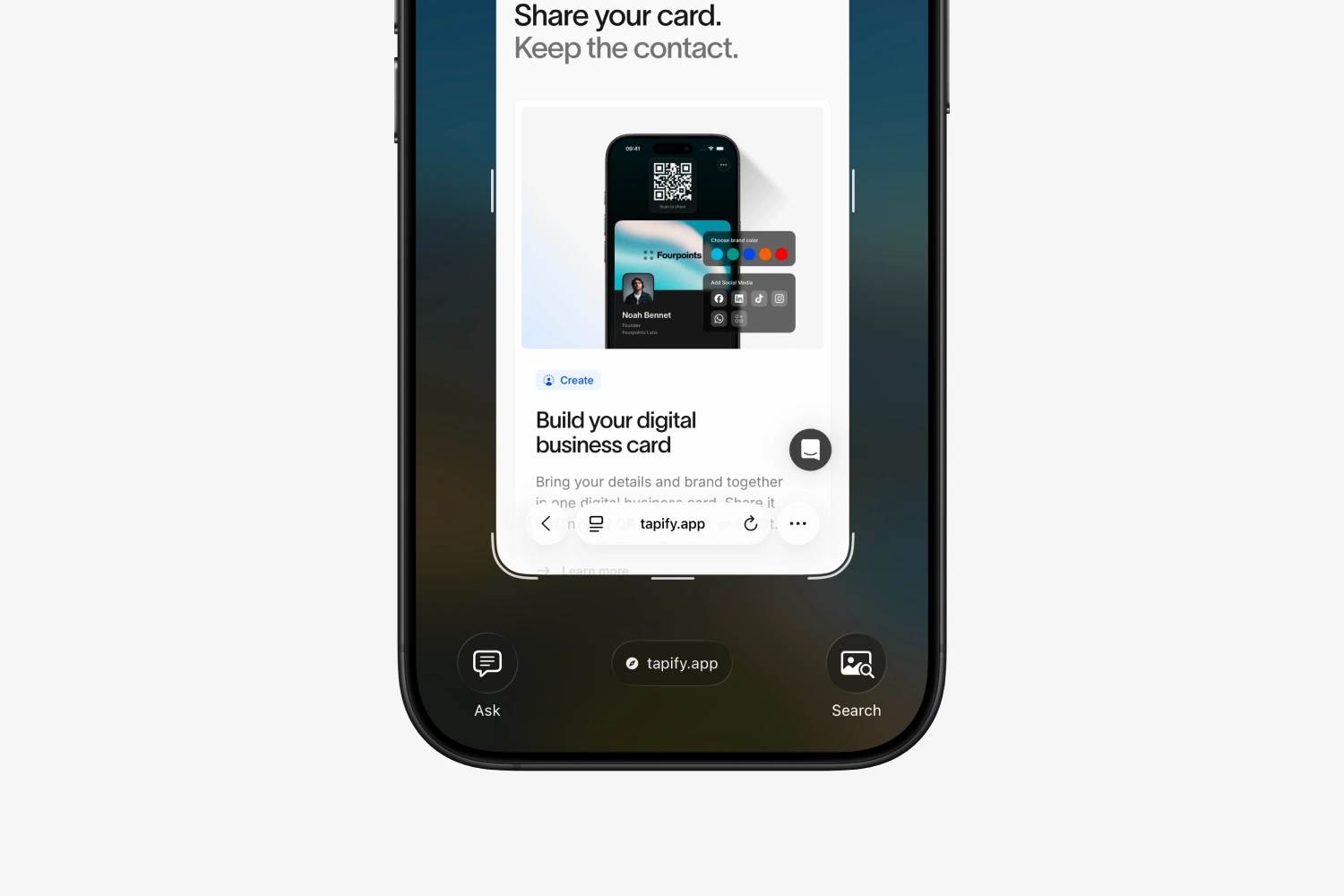
This view depends on your iPhone, software, and Apple Intelligence settings. Apple explains how to use information from your screenshot. If no relevant link appears, read the QR code in Photos instead.
Open a saved photo or screenshot
Use Photos when the QR code is already on your iPhone. It can be in a picture someone sent you, a photo you took, or a screenshot.
- Open the image in Photos with the whole QR code visible.
- Touch and hold the QR code until a menu appears.
- Check the detected web address and choose the option to open the link.
The menu depends on what's stored in the code. It may show a website or another action. Apple describes this QR code recognition in images.
No menu appears
If you see the Live Text button at the lower right, tap it and try the code again. Look for a frame containing lines of text. If needed, check Settings → General → Language & Region → Live Text. Apple explains how to use Live Text in Photos.
Image recognition isn't available on every iPhone. As an alternative, open the picture in Google Photos and choose More → Google Lens. Google documents this Lens option for iPhone.
Scan a QR code from a photo on Android
Google Lens in Google Photos can read a code that's already on your phone. You don't need to display it on another screen first.
- Open Google Photos and select the picture or screenshot.
- Tap More at the top, then choose Google Lens. If Lens appears directly beside the photo, tap it there.
- Select the QR code if Lens focuses on another part of the image.
- Check the detected link and tap it to open the page.
These are the current steps for Google Lens in Photos. Button names and positions can vary by app version.
If your screenshot is missing from the main view, look under Collections → On this device → Screenshots in Google Photos. You may need to save an image to your phone if you've only viewed it inside a message.
Scan a QR code in Samsung Gallery
On supported Samsung Galaxy phones, you can read the code directly in Gallery:
- Open the saved image in Gallery.
- Touch and hold the QR code until your phone shows a link or action.
- Review the notification and choose the action you want.
Samsung describes this under scanning a QR code saved as an image. Availability and screens vary by device and software version. If Gallery doesn't respond, open the same image in Google Photos and follow the Lens steps.
Save a QR code from WhatsApp, email, or a PDF
If someone sends you a QR code as an image, open it at full size first. Use the option to save or download the picture. Its name depends on the app. Then open the saved image in Photos, Google Photos, or Gallery.
For a code on a web page or in a PDF, take a screenshot. Enlarge the code first if it appears small in the document. Keep the entire code and the empty border around it visible.
Take a screenshot
- iPhone with Face ID: briefly press the side button and volume up button together.
- iPhone with a Home button: briefly press the Home button and the side or top button together.
- Android: on many phones, briefly press the power button and volume down button together.
In iOS 26, a preview opens after you take the screenshot. Tap the save button and choose Photos to keep the image there. Earlier iOS versions briefly show a small thumbnail. Follow the instructions from Apple for iPhone screenshots or Google for Android if your phone works differently.
If there's a regular link beside the QR code, you can open that directly. There's no need to save an image.
QR code not recognized: what to try
No link or action appears
- Use the full image. A small preview in a chat may not contain enough detail. Open or download the original.
- Keep the empty border. Don't crop tightly around the squares. That clear space around a QR code helps a scanner recognize it.
- Check that the code is sharp. Zooming in won't restore detail to a blurry picture. Ask the sender for a clearer image or the link itself.
- Select the right code in Lens. If your screenshot contains several pictures or codes, move the selection to the one you want to open.
You don't need to point your camera at your own screen to read a saved picture. For a code on paper or another device, follow our guide to scanning a QR code with your camera.
A link appears, but the website won't open
The code has been read. Check your internet connection and try the link again. If you see an error such as Page not found, ask the sender for the correct link. Taking a new screenshot of the same code won't restore a missing web page.
Check that the web address matches the sender and what you're expecting. Don't enter details on an unexpected page. Our general scanning guide explains how to open a QR code safely.
Open a Tapify business card from a screenshot
If someone sends you a picture of a Tapify QR code, follow the steps for your phone and open the detected link. A code pointing to an online profile opens the digital business card in your browser. You don't need the Tapify app or an account to view it.
To save their details, choose Exchange contact details, fill in the form, and submit it. You can then choose Save contact and confirm that you want to save it on your phone. Reading the QR code alone doesn't add anyone to your contacts.
You can also download your business card’s QR code as an image in Tapify. Send it through WhatsApp or email. The recipient can read the saved image using the steps in this article.
To let someone open your card directly on the same phone, share your Tapify profile link.