
What is a vCard? Open and create a VCF file
A vCard is a digital contact file, usually with the .vcf extension. It contains details such as a name, phone number, and email address that you can save to your contacts without typing them out. A saved vCard is a copy: later changes to an online business card are not automatically applied to it.
What is in a vCard file?
Someone sends you a file called noor-jansen.vcf. Open it in a contacts app and you can save their details without typing them out. That is what a vCard is for.
A vCard can contain a name, phone numbers, email addresses, a company, a job title, a postal address, a website, and a photo. The sender decides which details to include. Your contacts app decides how to display them.
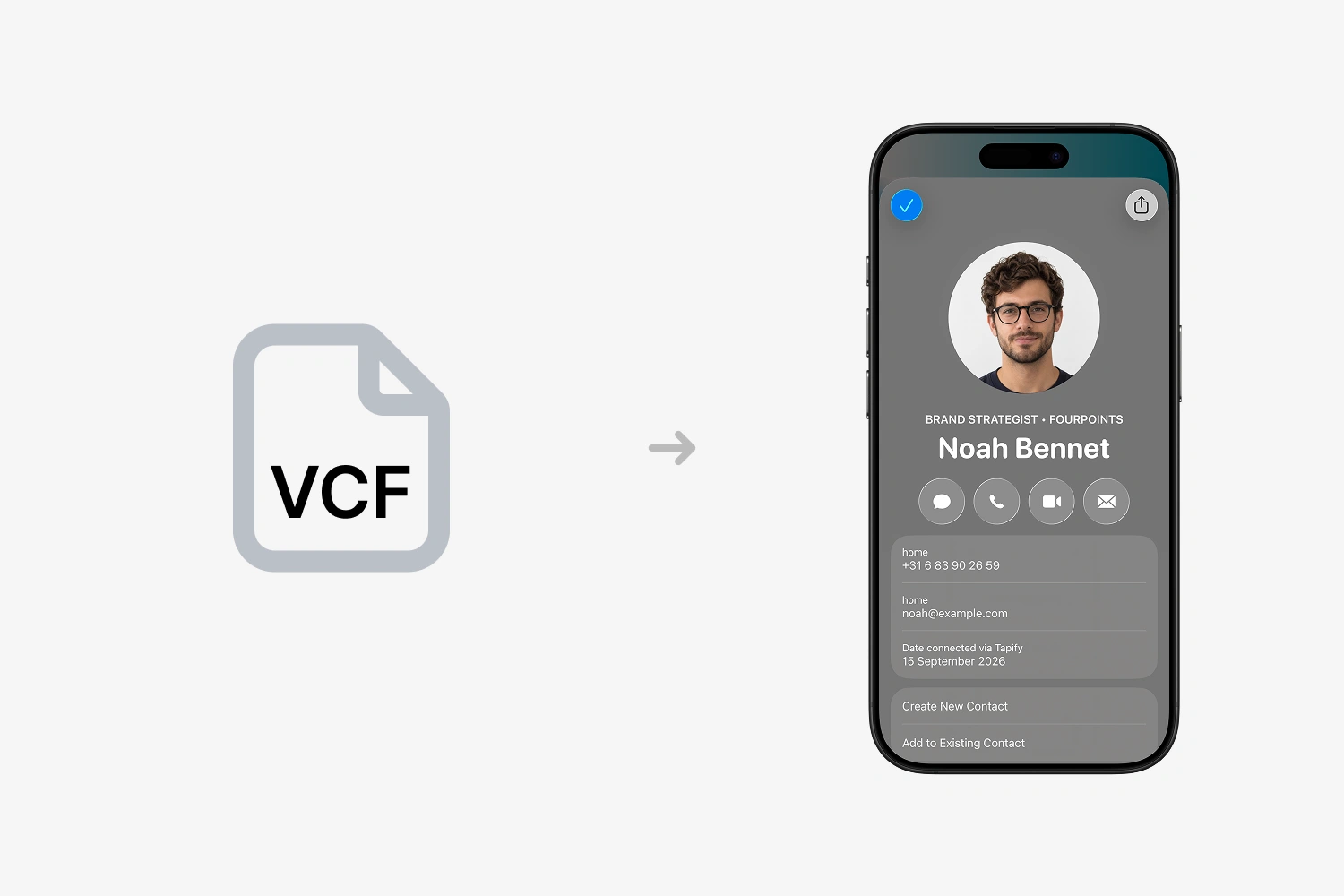
When there are several numbers or email addresses, labels such as work, home, or mobile help you tell them apart. They show which number to call. The exact label names can vary between contacts apps.
You can recognize a vCard by .vcf at the end of its filename. There is no need to convert a vCard to VCF: vCard is the format's name, and .vcf is its usual file extension. The format is described in the vCard standard.
When is a vCard useful?
A vCard helps when you want to pass on or keep contact details:
- After meeting someone: attach your contact file to your email. The recipient can save your number and email address without typing them out.
- Introducing a colleague: share their business contact so the recipient has their name, company, and contact details together.
- Moving to another address book: export selected contacts and import them into another contacts app that supports VCF.
How to open a VCF file
Use the method for your device below. After importing, find the person in your contacts and check their phone number and email address. Downloading the file alone does not necessarily save the contact.
On iPhone
- Open the email or message containing the
.vcfattachment. - Tap the attachment to view the contact details.
- Follow the options shown to add the contact and confirm the save.
Apple supports importing a vCard from an email or message. If a website only downloads the file, find it in Files → Downloads and try opening it there. If it only shows a preview, send the file to yourself as an email attachment and use the method above.
On Android with Google Contacts
Save the VCF file to your phone, then:
- Open Google Contacts.
- Choose Organize → Import from file.
- Select the Google Account where you want the contact saved, if asked.
- Find and select the
.vcffile.
These are the current Google Contacts import steps. Samsung and other contacts apps can use different menus. Look for an option to import contacts from a file.
On a computer
Mac: Open Contacts → File → Import, select the VCF file, and confirm Add. If duplicate contacts are found, review them before continuing. Apple explains importing a vCard on Mac.
Google Contacts in your browser: Open Google Contacts, then choose Import → Select file. Select the VCF and confirm the import. Check that you are signed in to the right account.
Classic Outlook for Windows: Open the vCard attachment, add it to Outlook contacts, and choose Save & Close. Microsoft's vCard instructions apply to classic desktop Outlook.
New Outlook or Outlook on the web: For a contact-list import, use a CSV file as described in Microsoft's import guide. If you only have VCF, you can first import it into Google Contacts and export the selected contacts as Outlook CSV. Renaming .vcf to .csv does not convert the file.
How to create and share a vCard
Start with a contact in your address book. Enter the details you want to share, then use the share or export option. You don't need to write code or use a separate vCard generator.
Share from your iPhone
- Open Contacts and select your own card or the contact you want to share.
- Tap Share Contact and choose the fields to include.
- Tap Done, then choose a sharing method such as Mail or Messages.
Apple describes how to select and share contact details. Check the selected fields before sending, especially if your personal and work details are on the same card.
Share from Android
- Open Google Contacts and select the contact you want to share.
- At the top right, choose Contact settings → Share contact.
- Pick the app you want to send the contact with from the share menu.
These are the sharing options in Google Contacts. Menu names can differ on other phones or app versions. To create a separate VCF file on your computer, use the export steps below.
Create a VCF file with Google Contacts
- Open Google Contacts on your computer.
- Create or update the contact, then select it in the list.
- Choose More actions → Export and select the vCard format.
- Export the file and attach it to an email or share it as a document.
Google supports exporting selected contacts as vCard files. Select only the people you intend to share. A full address-book export can include other people's details.
Before sharing your own business contact, check your name, company, email address, and phone number. Use an international dialing code if you share across borders. Open the exported file once to check what the recipient will receive.
vCard, digital business card, and QR code: the difference
These can work together, but each does a different job:
| Item | What it does |
|---|---|
| vCard (.vcf) | Contains contact details that someone can import into an address book. |
| Online digital business card | Shows a profile that the owner can update. It may also offer a contact download. |
| QR code | Can open a profile link or contain contact details directly. What happens depends on the code. |
For example, someone scans your QR code, opens your online card, and then saves a vCard to their phone. Opening the page and saving the contact are separate actions. Our guide to scanning a QR code explains the camera and screenshot steps.
Does a saved vCard update automatically?
An imported VCF file is a copy of the details at that moment. If the sender changes their phone number later, that change does not automatically reach the contact you imported.
An online Tapify card can show the updated number when you open it again. To update a contact you previously saved from a VCF file, edit it or import the new details and check for duplicates.
Syncing your own address book through iCloud or Google is a separate process. It can keep your copy available on your devices; it does not turn the downloaded file into a live connection to the sender's profile.
How Tapify uses a vCard
A Tapify digital business card gives someone a page to open when you share your link, QR code, or NFC card. They can view the profile in their browser without a Tapify app or account.
On the current Tapify web profile, saving works like this:
- Open the profile and choose Exchange contact details.
- Enter and submit your details.
- Choose Save contact to open or download the other person's VCF file.
- Open the file if needed, then confirm the save in your phone's contacts app.
The file contains contact information from the profile, such as the person's name, company, and the phone numbers or email addresses they have added. It does not reproduce the profile's layout or interactive buttons.
This is where the two formats work together: the online card presents the person, and the vCard helps you keep their details for a call or email later.
If a VCF file won't open or import
You see text or only a download
Open the file through your contacts app's import option. A browser or text editor may display the contents without offering to add a contact. On iPhone, try the email-attachment method above.
The contact is missing after import
Check the account and contact list you are viewing. The import may have saved to a different account. Search by email address or phone number as well as name before importing again.
A photo, label, or other detail is missing
Contacts apps do not always handle extra fields in the same way. Check the saved entry and its notes. Google specifically suggests checking notes for missing imported details. Add an important missing detail manually or ask the sender to export a new file.
The app reports that the file cannot be read
Download it again or ask for a fresh export. If a website was saved instead of a contact file, changing the filename will not fix it. Ask the sender for the .vcf attachment or their current profile link.