
Create and share a digital business card on your iPhone
You can create a contact card or an online business card on your iPhone. With Tapify, fill in your profile, open its QR code and share your card by scan or link. You can also add it to Apple Wallet. The other person opens your profile in their browser and confirms saving your contact details themselves.
Which kind of business card do you need on your iPhone?
If you only want to share your phone number and email address, your own card in Apple's Contacts app may be enough. You can send it as a contact file or use NameDrop to share it with a supported Apple device nearby.
A digital business card is an online profile. It brings together your work details, photo, and links, such as your website or booking page. A QR code or personal link opens that profile on an Android phone too. You can update the online details later without sending a new link.
This guide walks through creating a card with Tapify. It also explains how to use Apple's contact card below. You don't need a physical NFC card to get started with either option.
Prepare your contact details
For a work card, start with your name, job title, company, and the contact details people should use to reach you. Have a profile photo and, if needed, your company logo ready. Add links that will help the other person after your conversation.
Choose what you want to make public. Someone can forward your profile link, so use your work email address if you don't want your private address on the card.
You need internet to set up and open the online profile. The person receiving your Tapify card doesn't need the Tapify app or an account.
Create your business card in Tapify
- Open the Tapify download page on your iPhone and install the app from the App Store.
- Create your account and open your own card.
- Edit your profile details. Add your name, job title, company, and the contact details you want to share.
- Add your photo and relevant links. Use the design options available in your plan.
- Tap your card's QR code to open Share. Choose Copy your card link to copy your profile link.
- Open the link in your browser. Check your name, phone number, email address, and links, then correct anything missing or outdated in Tapify.
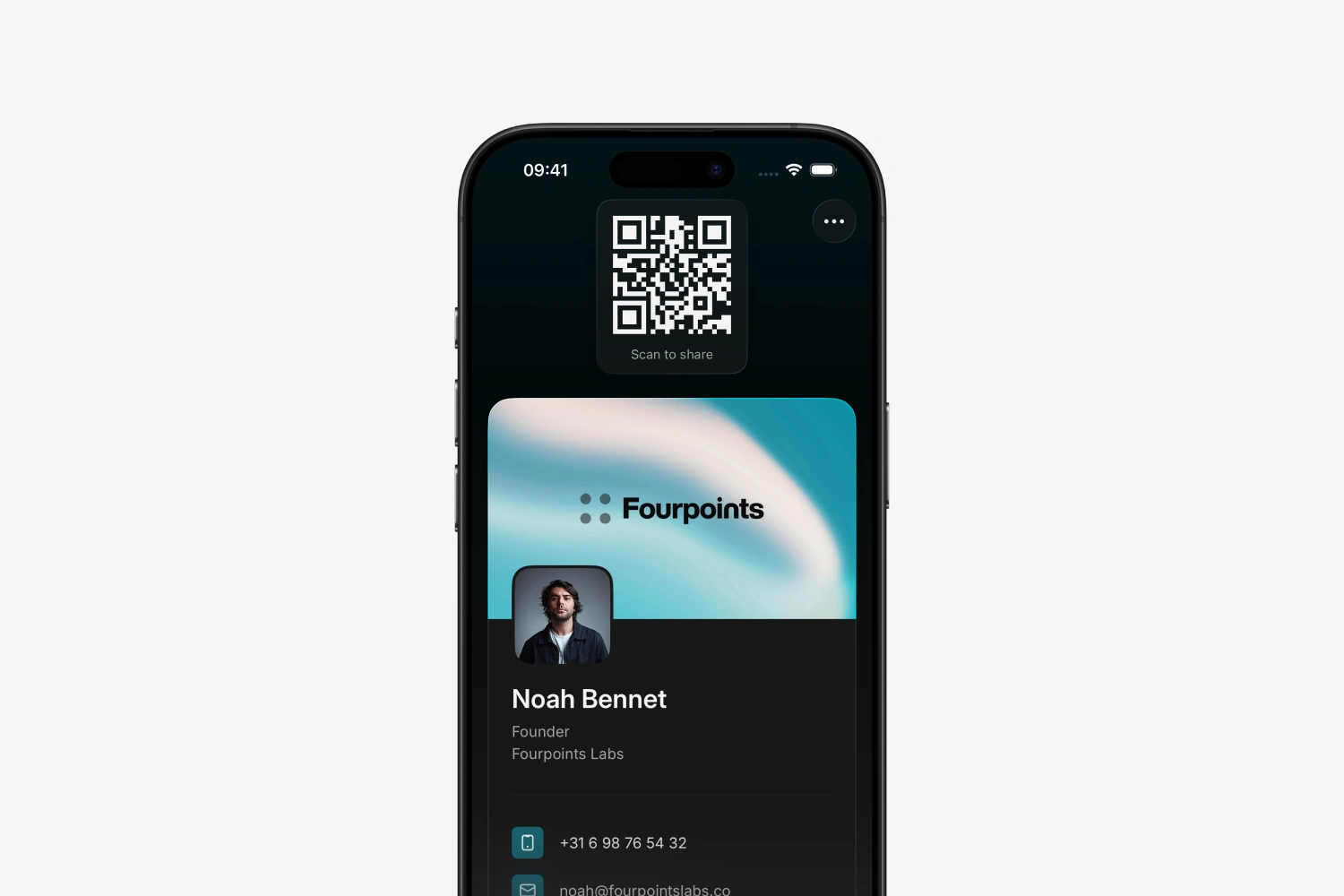
Tapify Free lets you create a digital business card and share it without a sharing limit. Additional design and contact features depend on your plan. The pricing page shows the current differences.
Share your card by QR code or link
At an in-person meeting
Open your card's QR code in Tapify and show it on your screen. The other person points their phone's camera at it and taps the recognized link. Your online profile opens on their phone. If they need help, follow the guide to scanning a QR code.
After a conversation or in a message
Open Share in Tapify and choose Copy your card link. Paste it into a message, email, or chat. The other person can use it to open the same card later. You can also add the link to your email signature yourself.
Your online card stays at the same link when you change your details. A contact that someone has already saved in their address book is a separate copy.
Add your business card to Apple Wallet
A Wallet card gives you access to your QR code without opening Tapify first:
- Open your card in Tapify and tap its QR code to open Share.
- Choose Add to Apple Wallet.
- Check the preview and tap Add to Apple Wallet.
- Confirm the addition in the Wallet screen that follows.
- Open the Wallet app, select your Tapify card, and show its QR code.
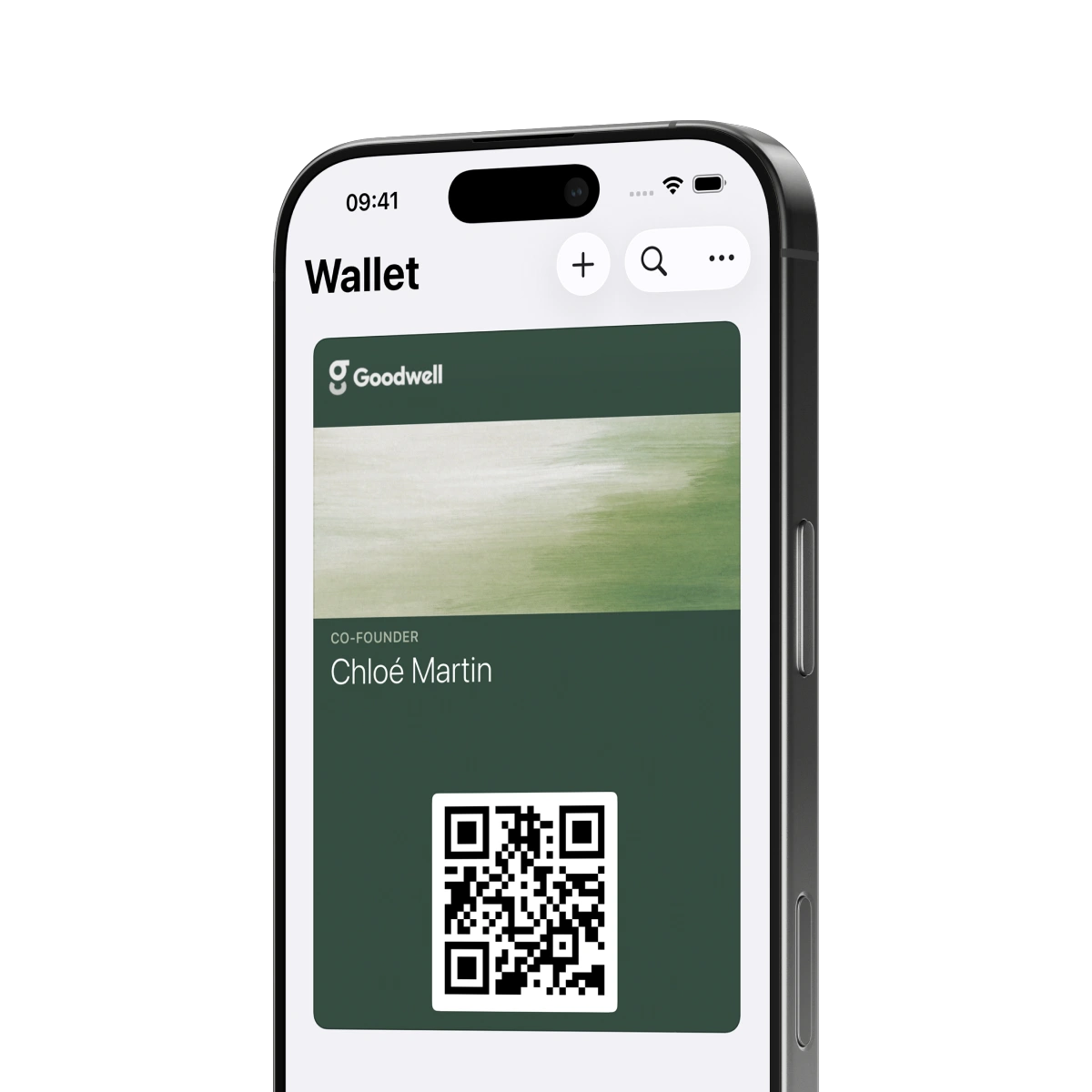
You don't need a payment card or Apple Pay to use this card. Its QR code opens your profile. Our Apple Wallet guide explains how to open the app and find missing cards. Apple also explains how to add passes from supported apps to Wallet.
How the other person saves your contact
Opening a profile doesn't save a contact automatically. On a Tapify profile, the exchange works through the contact form:
- The other person opens your profile and chooses Exchange contact details.
- They enter their name and the details they want to share with you.
- They confirm with Share details. Those details appear in your Tapify contacts.
- They can then choose Save contact and confirm the import in their contacts app.
The downloaded vCard contains a copy of your contact details. If you later change your phone number, your online profile shows the new number. A contact already saved on someone else's phone won't update automatically.
Alternative: Apple's contact card and NameDrop
For a basic contact exchange, you can also use Apple's Contacts app:
- Open Contacts and select My Card at the top.
- Tap Edit and add your details.
- Open the card again, choose Share Contact, and select the fields you want to share.
- Choose one of the offered methods, such as Mail or Messages.
Apple explains editing your own contact card and sharing contacts.
NameDrop lets you exchange new contact information between supported Apple devices nearby. Both people confirm what to share. NameDrop doesn't provide a general sharing method for Android and doesn't update contacts that have already been saved.
If sharing or saving doesn't work
- The QR code isn't recognized: Show the entire code, increase your screen brightness, and leave some distance between the screen and camera. For a code saved on the same phone, use the photo and screenshot guide.
- The link won't open: Check the internet connection and open the copied link yourself in a browser. Displaying a QR code doesn't give the other phone an internet connection.
- The contact is missing from the address book: Opening the profile is only the first step. Check whether the person completed the exchange and confirmed the import after Save contact.
- An old number is still saved: Compare the saved contact with the current online profile. Updating a profile doesn't overwrite downloaded contacts.
Before an event, try your QR code, links, and contact exchange with another person. If you need cards for several employees, Tapify Teams provides central management.