
Use an NFC business card with your iPhone
Turn on the display of a compatible iPhone and hold its top edge close to the NFC business card. Open the notification to view the profile in your browser. With Tapify, exchange details through the form and then confirm saving the contact. If NFC doesn't respond, use the QR code on the card.
What you need to use an NFC business card with an iPhone
An NFC business card contains a chip with a link. The iPhone reads that link and shows a notification. The digital profile opens when the person taps the notification. The card itself doesn't need a battery.
You need an NFC business card that has already been set up, an iPhone that can read the appropriate NFC tags, and internet on the receiving phone. Someone opening your Tapify card doesn't need the Tapify app or an account.
Background tag reading is supported on iPhone XS, XS Max, XR, and suitable newer models. Apple explains the requirements for reading NFC tags in the background. Older devices work differently. Our NFC on iPhone guide helps you check your model.
Set up your card before sharing it
When you receive a Tapify NFC card, link it to your own profile first:
- Install the app through the Tapify download page and create an account if you don't have one.
- Add your name, job title, company, and the contact details you want to share to your profile.
- Follow the activation instructions supplied with your NFC card. The physical card needs to be linked to your profile.
- Open your profile link in a browser and correct any missing details.
- Try the card with a second smartphone to check that it opens the right profile.
Activating your own card and someone else opening it are separate steps. A person receiving your details doesn't need to activate the card again.
A Tapify NFC card is a separate purchase. Its basic use doesn't require a paid subscription. The NFC product page shows the available options, and the pricing page explains the app plans.
Hold the card near the top of the iPhone
- Turn on the receiving iPhone's display and unlock it. After a restart, it needs to have been unlocked at least once.
- Close the camera and Wallet or Apple Pay if they're open.
- Hold the top of the iPhone close to the NFC area of the card. Reading works over a short distance, so move the card slowly rather than sweeping it past the phone.
- Wait for the NFC notification and tap it.
- The digital profile opens in the browser. Check that it belongs to the person you expected.
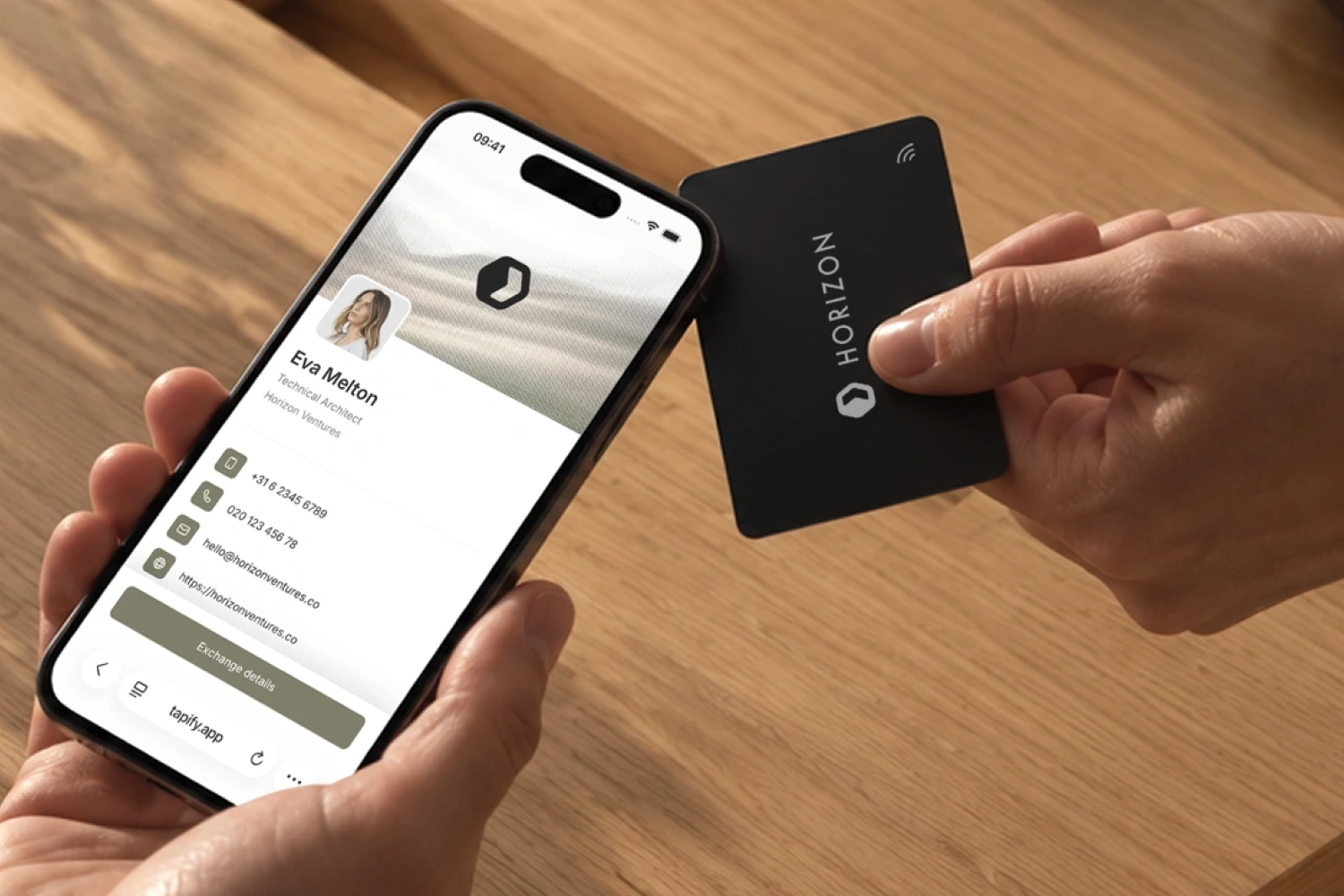
You don't need to press the card against the screen. Once it's been read, you can move it away. Keep the physical card so you can use it again at your next meeting.
Exchange details and save the contact
A successful NFC scan opens the business card first. It doesn't automatically save your phone number in the iPhone's address book. On a Tapify profile, the exchange continues like this:
- The other person chooses Exchange contact details.
- They enter their name and the contact details they want to share.
- They confirm with Share details. Those details appear in your Tapify contacts.
- They then choose Save contact and confirm the contact import on their iPhone.
After saving, check the Contacts app. The downloaded vCard is a copy of the details at that time. Changes to your online profile don't automatically update a contact that someone has already saved.
Agree during the conversation which details you need for the next step. If you're going to send a proposal, for example, you'll need an appropriate email address. A name alone won't be enough.
If the iPhone doesn't read the NFC card
No notification appears
Check that the display is on, Airplane Mode is off, and the camera or Wallet isn't in use. Hold the card near the top of the iPhone again. A thick or metal case or a magnetic plate can interfere with reading. Try without accessories that may be getting in the way.
If another suitable phone reads the same card, the issue is more likely to involve the first phone's settings, model, or position. If no device reads the card, check its activation and contact Tapify support if needed.
A notification appears, but the page won't load
The NFC reading has already worked. Check the internet connection and try opening the profile link directly in the browser. If the card opens the wrong profile, check which profile it's linked to.
The profile opens, but the contact is missing
Saving is a separate step after opening the profile. Complete the contact form and confirm the import after Save contact. The vCard guide has more help with contact files.
Use the QR code instead
Every Tapify NFC card also has a printed QR code. If NFC isn't available on the receiving phone or doesn't respond:
- Open the phone's camera.
- Keep the entire QR code in view.
- Tap the recognized link.
The QR code opens your digital business card too. From there, follow the same steps to exchange details and save the contact. Our QR code guide explains the camera features on iPhone and Android.
You can also share your profile without a physical card, through the QR code in Tapify, a link, or Apple Wallet. The guide to creating a business card on iPhone walks through those options.
NFC cards, Apple Wallet, and NameDrop
An NFC business card passes a link from the physical card to the phone. A Tapify card in Apple Wallet shows a QR code on your screen. The other person scans that code with their camera.
NameDrop is Apple's feature for exchanging new contact information between supported Apple devices. People hold their devices near each other and confirm what they want to share. NameDrop doesn't activate a Tapify NFC card and isn't needed for the NFC steps above. Apple explains the NameDrop exchange.